Submit your work
Send a task for review with a summary, files and a link.
- Open the task from My tasks. If you have not started it yet, choose Start this task.
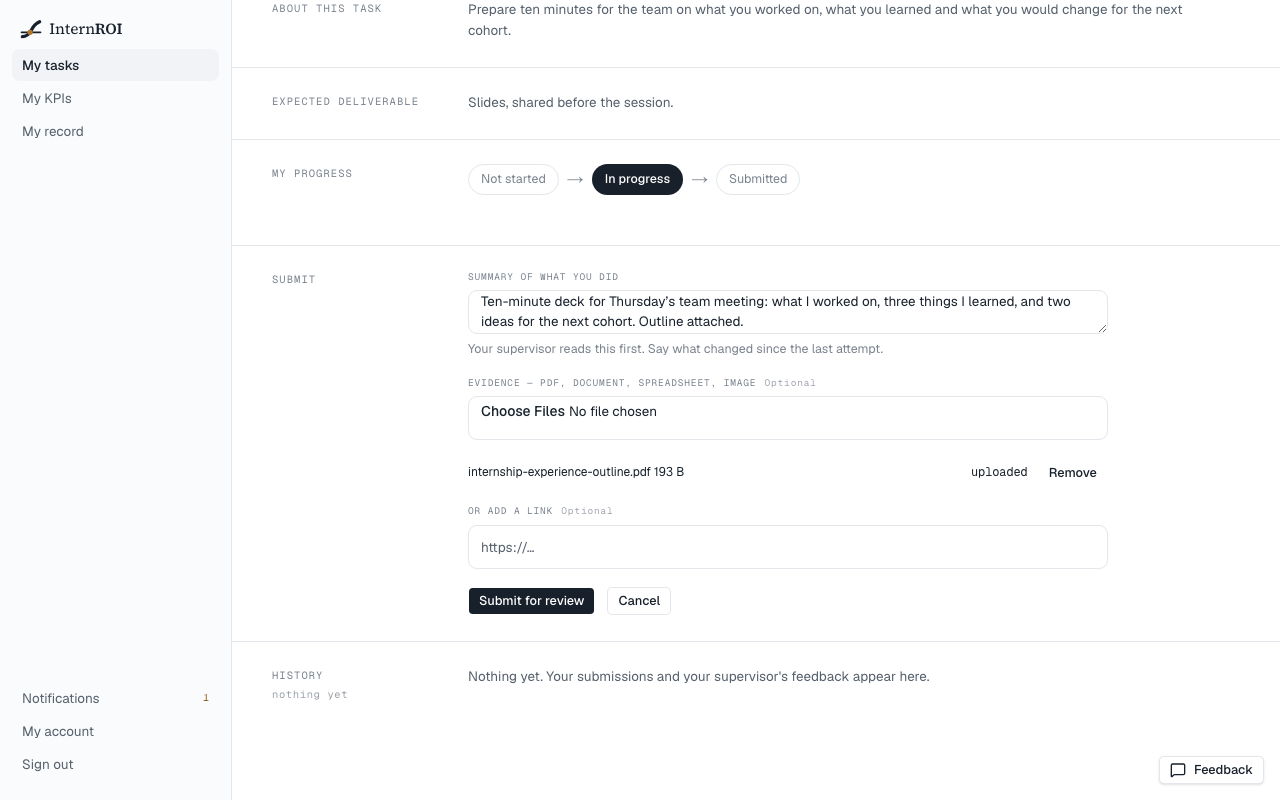
- The Submit form opens. If it is closed, choose Submit work.
- Write a Summary of what you did. This is required, and it is the first thing your supervisor reads.
- Add evidence. Some tasks need it: their form says This task needs a file or link. Attach one before submitting., and Submit for review waits until you have attached one. For the rest it is optional:
- Under Evidence, choose your files — a PDF, document, spreadsheet or image. Each file uploads straight away and shows uploaded when it is done.
- Or paste a web address in Or add a link. It must start with https://.
- Choose Submit for review. The button waits until every file has finished uploading.
The task now reads Awaiting review, and your supervisor is told.
Limits
- Each file can be up to 50 MB, and you can attach up to 20 files to one submission.
- One link per submission.
- Your summary can be up to 4,000 characters.
Files are private: only you, your supervisor and your company’s admins can open them.
After you submit
You cannot edit or withdraw a submission once it is sent. Your supervisor will either accept it or ask for a re-do. Every attempt is kept in the task’s History.
Messages you might see
- Describe what you did before submitting — the summary is empty.
- This task needs a file or link. Attach one before submitting. — add a file under Evidence, or a link.
- Links must be a full https:// URL — check the link starts with https://.
- … failed to upload — remove the file and try again, or add a link instead.
- File attachments are not configured on this deployment — add a link instead. — use Or add a link.